CDN Status on a TRMNL Display
- 3 minutes read - 508 wordsI built a TRMNL plugin that puts Cloudflare, Akamai, and Fastly status on an e-ink display. It pulls from their public status pages and shows active incidents, maintenance, and service problems side by side. You can glance over at the device to see what’s going on across all three.
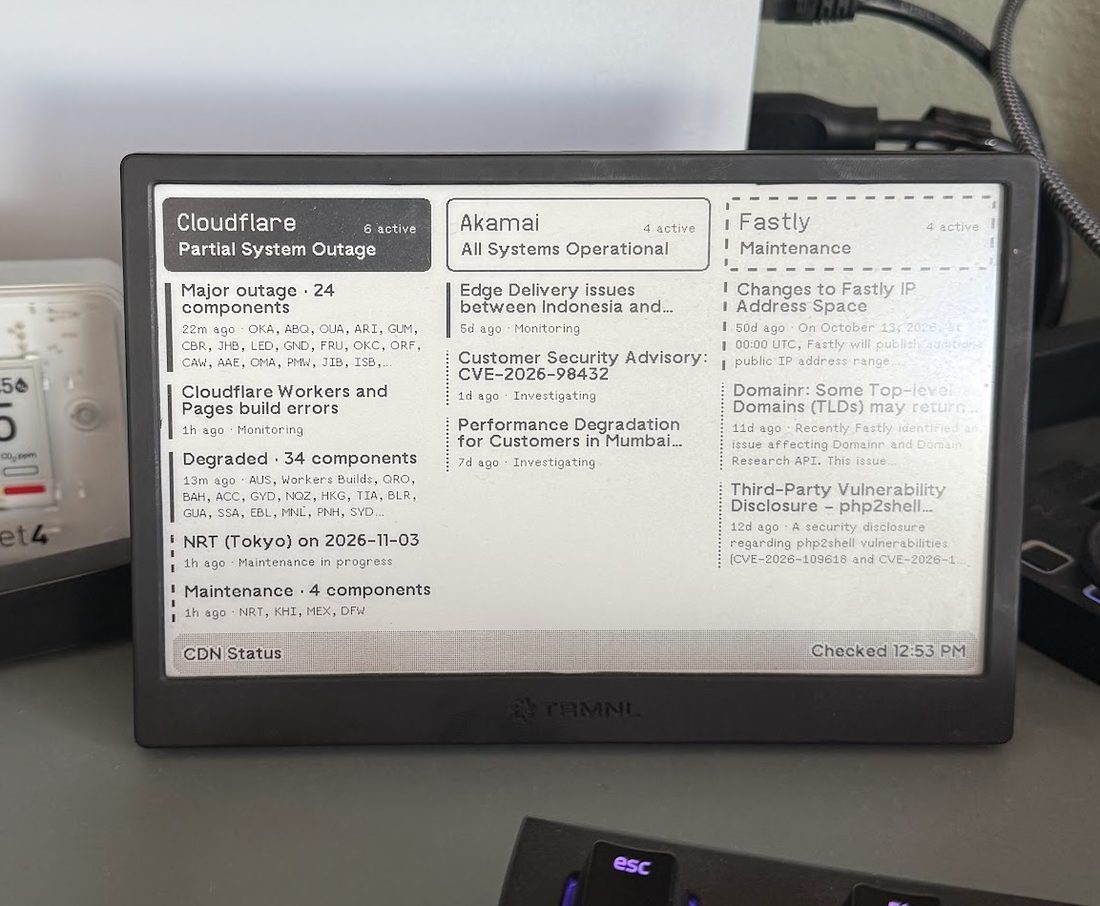
Here’s what it looks like on my TRMNL:

What’s on the screen
Each provider gets a column with its overall status at the top and active items underneath. Those can include an incident being investigated, maintenance currently in progress, or a group of components reporting degraded service. Items are sorted by severity, then recency, so the bigger problems get space first.
The screen uses solid and dashed borders, along with black headers for major outages, to distinguish statuses on the black-and-white display. Each item includes an age and a short detail, such as the incident’s status or the affected locations. The footer shows when the data was checked.
This is a screenshot from the browser preview :

The active count includes items that don’t fit on the screen. There’s only so much room on an 800 by 480 display, so long titles and descriptions get cut off. You can still go to the provider’s status page for the full report.
The plugin also supports half-screen and quarter-screen layouts for TRMNL mashups, which let multiple plugins share the display. Here’s the horizontal half-screen version:

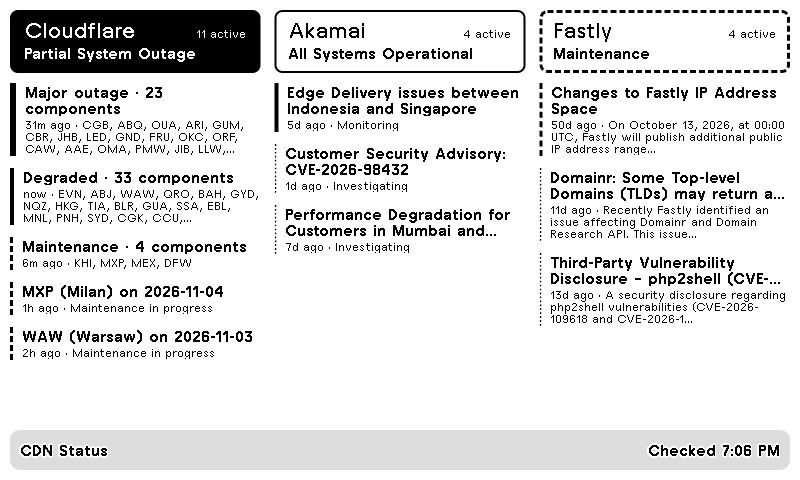
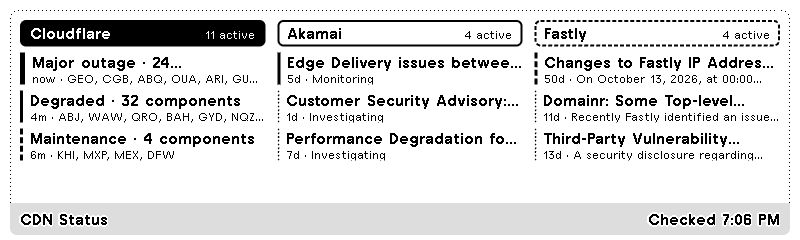
These screenshots show the status reported when I captured them. The preview uses the same templates as the device, with fresh data each time you open it.
How it gets there
A Cloudflare Worker checks all three providers every five minutes. When the displayed status changes, it sends the updated data to TRMNL. It also sends an update at least every 30 minutes so the timestamps and incident ages stay current.
TRMNL renders that data into a screen image. The device downloads the image on its own refresh schedule, so a five-minute check doesn’t mean the physical screen updates every five minutes.
The information comes from each provider’s public status feed. The plugin doesn’t test your website or measure CDN performance. If a feed can’t be read, that provider shows “Status unavailable.”
What you need
- A TRMNL device connected to Wi-Fi, with access to private plugins. On TRMNL’s hosted service, that means the Developer add-on , which is included if you bought the Developer edition.
- A free Cloudflare account to run the Worker and store its last delivery state in Workers KV. At the default schedule, it checks 288 times per day, with at most one KV write per check. That is well within the free daily Workers request allowance and KV read/write allowances .
You don’t need accounts with Akamai or Fastly to read their public feeds. Cloudflare hosts the scheduled code, so there’s no server to keep running at home.
Grab the code and setup instructions in the cdn-status-trmnl README . It covers deployment, connecting your private plugin, and putting the layouts on your device.